GST is added to the price of a pass or a pack when you pay, as its own line on your invoice. The window where you buy shows it before you pay.
How to get the invoice you need
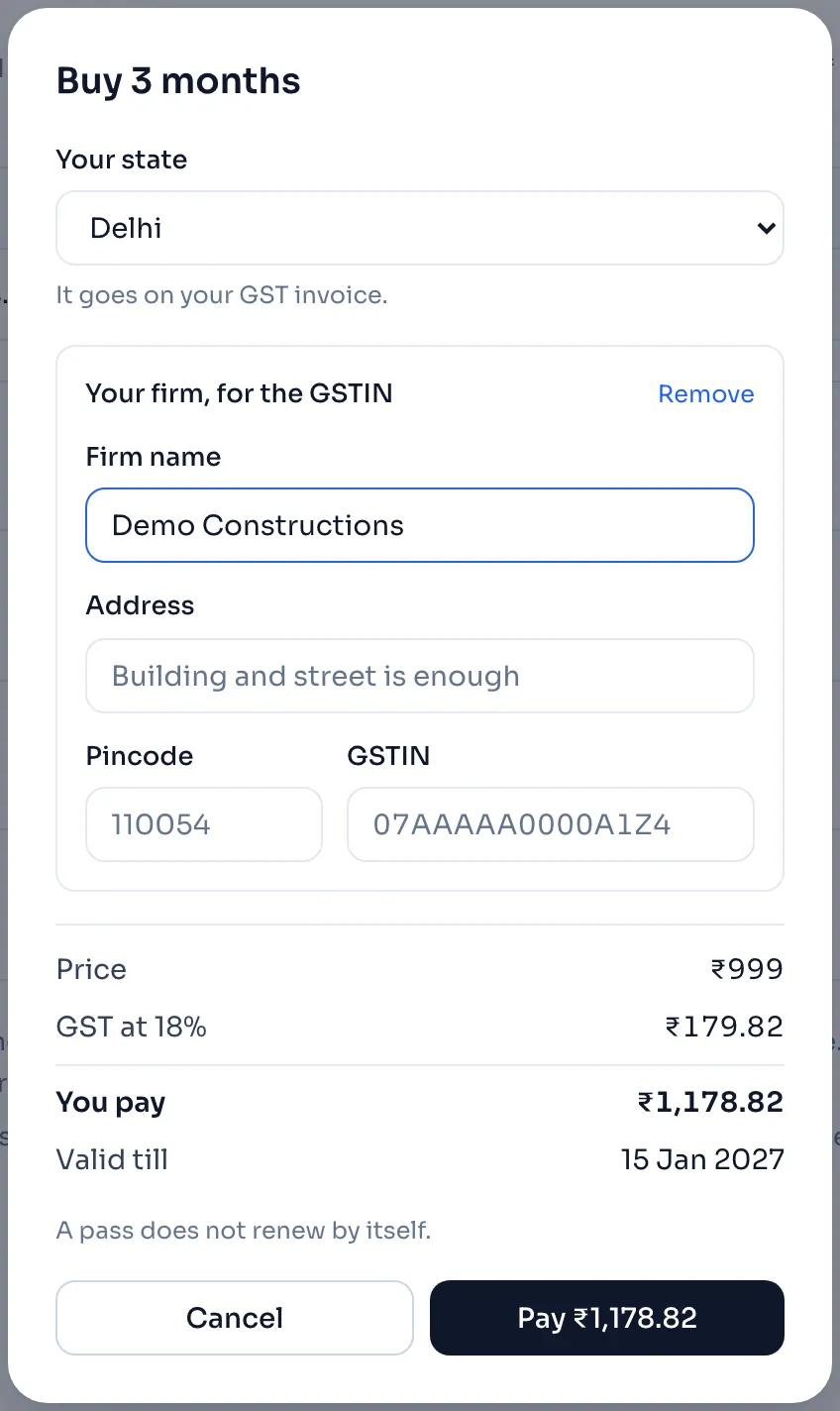
- In the window where you buy a pass or a pack of AI readings, choose Your state. It goes on your GST invoice, and you cannot pay without it.
- If your firm is registered for GST, press + Add your firm's GSTIN. A box Your firm, for the GSTIN opens. Fill all four: Firm name, Address, Pincode and GSTIN. Press Remove to close it again, and then none of them is sent.
- Check Price, GST at 18% and You pay, then press Pay.
- After the payment, the window says Payment done and that your tax invoice is on your account page.
- Open your account page. In the panel Payments, press Tax invoice with its number, and the PDF is saved.
Things to know
- Your state decides how the GST is split on the invoice. For Delhi it is CGST and SGST in two equal halves, and for any other state it is IGST. What you pay is the same either way.
- The first 2 digits of a GSTIN are its state, and the state you choose must match it. The check also catches a mistyped character, before anything is charged.
- Add the GSTIN before you pay. The invoice is made from the details you gave when you paid, and it cannot be changed after it is made. If a detail is wrong, write to admin@revenin.com.
- The next time you buy, the window starts with the details from your last order.
- The invoice is not sent by email. It is on your account page, in Payments.
- If money is paid back to you, a Credit note appears beside the Tax invoice of that payment.
How it is worked out
The GST is a share of the price of the pass, and the invoice shows it as its own lines. For an example price of 1,000 before GST:
| Line | Buyer in Delhi | Buyer in another state |
|---|---|---|
| Price | 1,000.00 | 1,000.00 |
| CGST at 9% | 90.00 | not charged |
| SGST at 9% | 90.00 | not charged |
| IGST at 18% | not charged | 180.00 |
| You pay | 1,180.00 | 1,180.00 |
If you see this message
Please choose your state.
Choose your state from the list. It is needed on every invoice.
Please write your firm address, building and street is enough.
Write the address of your firm in that box. Building and street is enough.
A pincode is 6 digits.
Type the 6 digits of your firm's pincode.
This GSTIN does not look right. A GSTIN is 15 characters, like
Check each character of your GSTIN against your registration.
This GSTIN is from
The message names the state of your GSTIN. Choose that state in Your state, or check the GSTIN again.