How to buy
- Sign in, then press your name at the foot of the side menu and press See prices, or Buy another if you already have a pass. On a locked item you can press See prices there, and you come back to that item after you pay.
- On the page Buy a pass, the panel Your pass shows what you have now. Press Buy beside the pass you want.
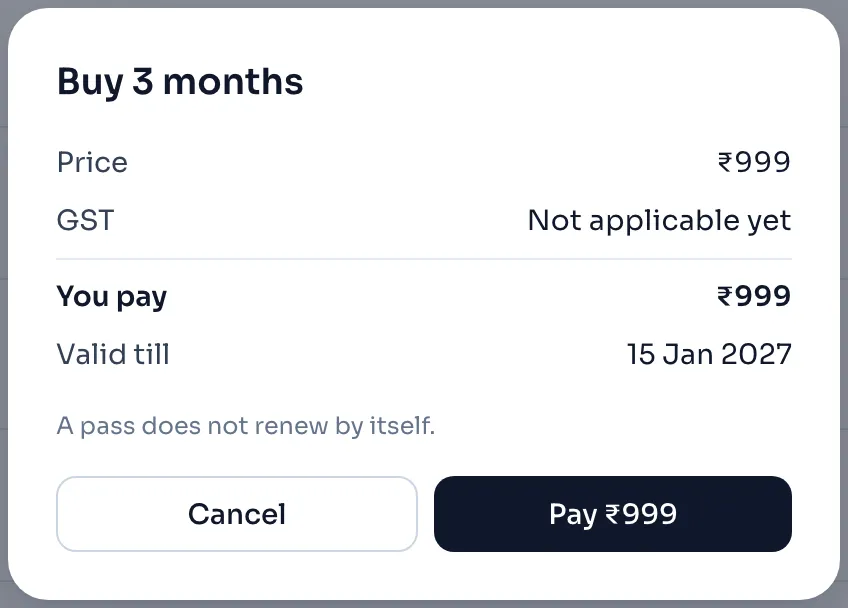
- A window opens with the order summary: Price, GST, You pay and Valid till, and the line that a pass does not renew by itself. Check them.
- Press Pay, which also shows the amount. Razorpay's own window opens over ours, and you pay there, for example with UPI or a card.
- When the payment goes through, our window says Payment done with the day your pass is valid till. Press Continue, and you land on the item you came from, or on your account page.
How to buy AI readings
- You need a pass that is running. On the page Buy a pass, find the panel AI readings for Justification. It says how many readings you have left, and it lists the packs with their prices.
- Press Buy beside the pack you want. A window opens, for example Buy 6 AI readings, with Price, GST and You pay. Fill your state, and your firm's GSTIN if you have one, the same as for a pass.
- Press Pay, and pay in Razorpay's window. When the payment goes through, the window says Payment done and that the readings are added to your account, and they never expire.
If you have no pass, the panel does not show Buy. It says that AI readings are sold while a pass is running, so you buy a pass first, see AI readings.
Things to know
- We set the amount. Your phone or computer cannot change what is charged.
- If you close Razorpay's window without paying, nothing is charged and you are back at the order summary.
- If a try fails, Razorpay's window stays open, so you can try another UPI app or card.
- Your pass is made when the bank confirms the payment, and not when the screen changes. If you shut the page too soon after paying, open your account page after a minute and look at Your pass.
- The pass starts when you pay, or when the pass you have now ends, see How a pass works.
- Payments are not refunded, so please check the pass or the pack before you pay.
If you see this message
We could not start the payment, please try again.
Nothing was charged. Press Pay again.
We could not open the payment window, please check your internet and try again.
Check your internet and press Pay again.
We could not reach our server, please check your internet and try again.
Check your internet and press Pay again.
Too many payments were started today. Please try again tomorrow.
Come back tomorrow, India time. If you need a pass today, write to us.
AI readings are sold while a pass is running, so please buy a pass first.
Nothing was charged. Buy a pass first, and then buy the AI readings.
Your payment went through and we are still confirming it, please look again in a minute.
Do not pay again. Open your account page after a minute and look at Your pass.
The payment did not go through. If money was taken, you will get the pass or your money back within a few days.
Wait for a few days. If neither the pass nor your money comes, write to admin@revenin.com with your mobile number and the day you paid.