How to print
- On the Download page, go down to the PDF panel. Under Sheets, tick the sheets you want. Select all ticks every sheet and Clear unticks them.
- Look at the A4 preview. The buttons above it change the sheet, the arrows change the page, and the minus and plus buttons and Fit width change the zoom.
- Open the Adjust box under the sheets and change the layout if you want to. The preview changes at once.
- Press One PDF to join the ticked sheets in one file, or Separate PDFs to get one file for each sheet, in a zip.
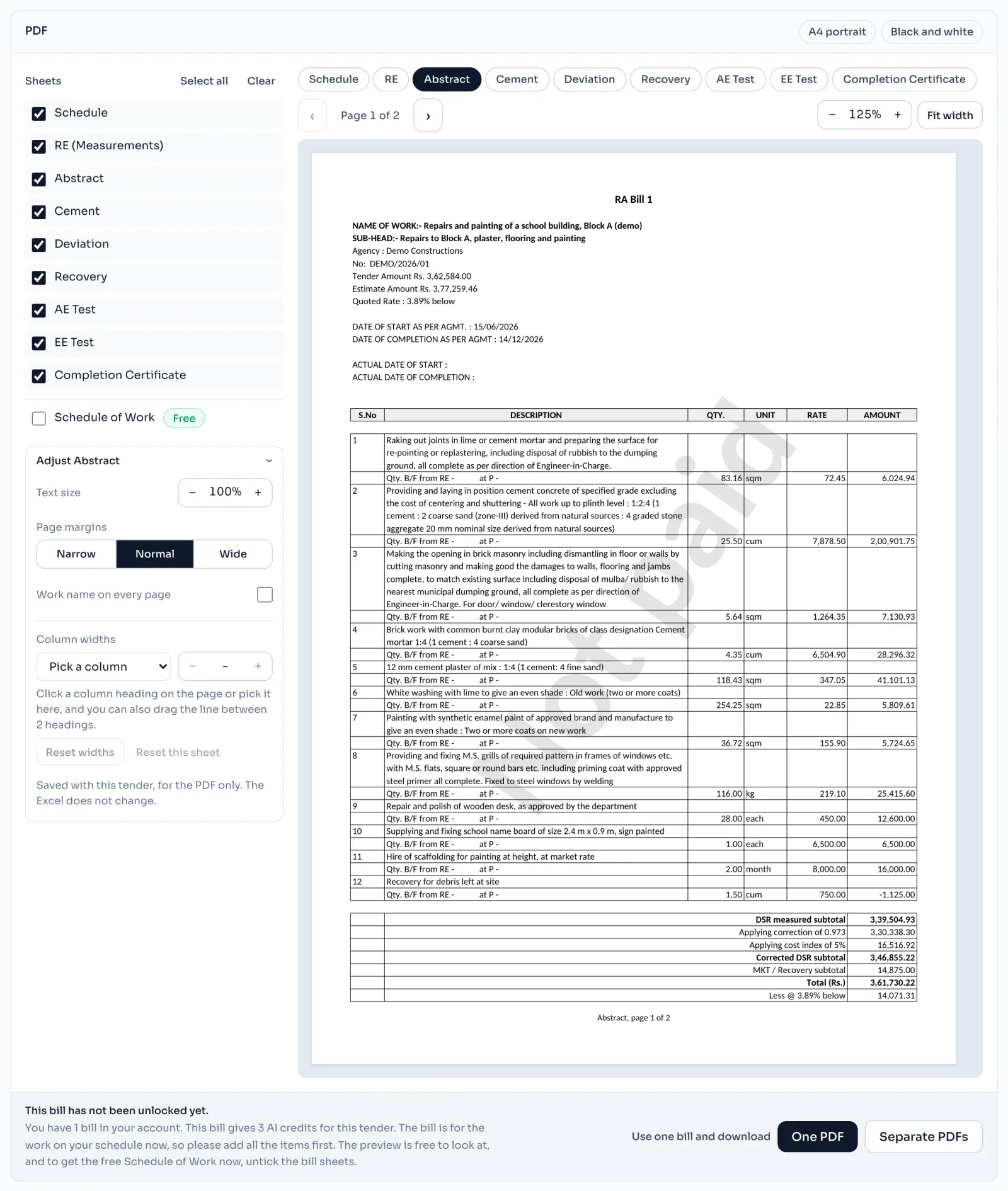
The settings
| Setting | What it does |
|---|---|
| Text size | Smaller text or Bigger text. A bigger size makes rows taller, and never makes the table wider. |
| Page margins | Narrow, Normal or Wide. |
| Work name on every page | Repeats the lines that name the work at the top of every later page. It is on for RE to begin with. |
| Column widths | Pick a column, then use the minus and plus buttons, or drag the line at the right of its heading. Reset widths goes back to the start. |
| Items on a page | For RE only. Run on, never split puts several items on a page, and One item a page starts every item on a new page. |
| Blank rows in each item | For RE only. Every item shows at least this many measurement rows. |
Reset this sheet puts that sheet's settings back. They are saved with the tender and used for the PDF only, so the excel does not change.
Things to know
- The preview is the file. The pages are laid out the same way in the preview and in the download, with the formulas already worked out.
- Not paid. On a bill you have not paid for, the preview shows "Not paid" faintly across every bill page. The preview is free, and the file you download never has that mark.
- The bill PDF is paid for with the excel. One payment covers both. On an unpaid bill a strip stands where the buttons are, and with a bill in your account it says Use one bill and download, with One PDF and Separate PDFs beside it.
- The Schedule of Work PDF is free. Tick it at the foot of the list and untick the bill sheets. With bill sheets, it comes first in the file.
How it is worked out
The table is scaled so its columns fill the space between the margins, and the text is scaled with it:
A wide table prints small, and narrowing columns that have spare room makes all the text bigger. For a Schedule of Work with 11 point text:
| Columns | Total width | Print size | 11 point text prints at |
|---|---|---|---|
| Same as the excel | 162 | about 59% | about 6.5 points |
| The PDF's own narrower columns | 117 | about 81% | about 8.9 points |
That is why the Schedule of Work PDF starts with narrower columns than its excel.
If you see this message
The bill PDF comes with the same payment as the Excel, and the preview is free to look at.
The bill is not paid for yet. Look at the pages as long as you like.
Some letters on this sheet are not in the PDF font
Those letters print as empty boxes. Type them in English letters.
please reload the page and tick the sheets again.
A sheet you ticked is not in the bill now. Reload the page and tick again.